All articlesGeneral
Microsoft 365 Security Checklist: 10 Essential Settings Every Business Should Enable
27 July 20264 min readBy Omnicron Team
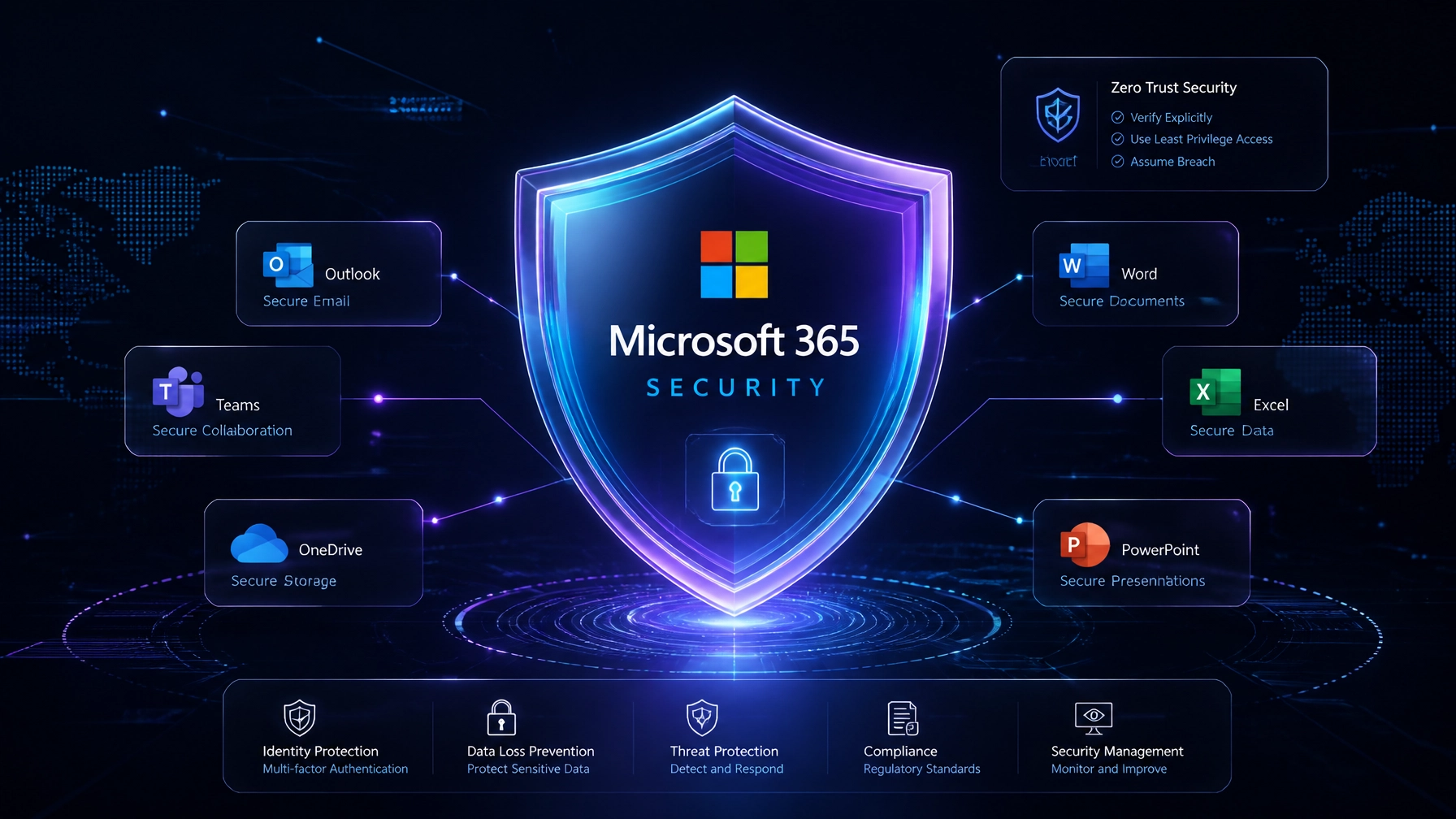
Microsoft 365 Security Checklist: 10 Essential Settings Every Business Should Enable

For small to medium-sized businesses in Victoria, Microsoft 365 is the operational backbone. Whether you are a medical clinic managing patient records, a law firm handling sensitive litigation, or a manufacturing plant coordinating logistics, your data is your most valuable asset. However, the default configuration of Microsoft 365 is often insufficient to prevent advanced cyber threats.
Securing your environment requires more than just a subscription; it requires a strategic implementation of Microsoft 365 security settings. This Microsoft 365 security checklist outlines ten essential configurations designed to harden your defenses and ensure business resilience.
Identity is the new perimeter. Standard passwords are no longer enough to protect against credential harvesting. Enforcing Multi-Factor Authentication (MFA) is the single most effective step you can take to secure your environment.
We recommend using the Microsoft Authenticator app rather than SMS-based codes, which are vulnerable to SIM-swapping attacks. For firms requiring an MFA setup guide or professional deployment, Omnicron provides structured Managed IT Services to ensure 100% user adoption without disrupting workflows.

Conditional Access acts as an intelligent gatekeeper. Instead of a binary "allow or block," it evaluates signals: such as user location, device health, and login risk: before granting access. For a Victorian real estate agency, this might mean blocking access from IP addresses outside of Australia or requiring a managed device for any user attempting to access financial data.
Email remains the primary entry point for ransomware. Microsoft 365 phishing protection should be configured to detect impersonation attempts, especially targeting high-profile executives or finance teams. By enabling mailbox intelligence and refined impersonation detection, you can prevent sophisticated social engineering attacks before they reach an inbox.
As part of email security best practices, Safe Attachments and Safe Links (available in Microsoft Defender for Office 365) provide "time-of-click" protection. These tools sandbox every attachment and verify every URL in real-time. If a link is weaponized after the email is delivered, the system will block the user from accessing the malicious site.
In the event of a security incident, visibility is critical. Mailbox auditing ensures that every action: such as an external login or a change in folder permissions: is logged. This data is vital for remediation and forensic analysis. At Omnicron, our Security Review process includes a deep audit of these logs to identify any historical unauthorized access.
For accounting practices and medical clinics, protecting Sensitive Information Types (SITs) like Tax File Numbers or health records is a regulatory requirement. DLP policies monitor for these specific data patterns and can automatically block the sharing of sensitive information via email, SharePoint, or Teams.

The convenience of the cloud can lead to "oversharing." By default, SharePoint often allows "Anyone with the link" access. Businesses should restrict this to "Specific people" and disable external sharing for highly sensitive folders. Regular reviews of shared links are necessary to ensure that third-party access is revoked when no longer required.
Data that is no longer needed is a liability. Retention labels allow you to automate the deletion of old data or the preservation of records for legal compliance. Implementing these policies ensures your environment remains clean and reduces the volume of data at risk during a breach.
A common misconception is that Microsoft provides a comprehensive backup of your data. In reality, Microsoft is responsible for the infrastructure (uptime), while the customer is responsible for the data. Microsoft’s native tools offer limited retention through "Recycle Bins," which are not a substitute for a true backup.
A third-party Microsoft 365 backup solution is essential for protection against ransomware, accidental deletion, or malicious internal activity. This ensures that your Exchange, SharePoint, OneDrive, and Teams data is stored in a separate, immutable location. Omnicron’s Managed Protection includes robust backup management to ensure you can recover from any data loss event in minutes, not days.

Administrative accounts are high-value targets. Privileged Identity Management (PIM) reduces the risk by providing "just-in-time" administrative access. Instead of having permanent Global Admin rights, an IT manager must request access for a specific window of time, which is then logged and audited. This follows the principle of "Least Privilege," a core pillar of a security-first IT strategy.
Implementing these Microsoft 365 security settings can be technically complex and time-consuming for internal teams. Omnicron provides Victorian businesses with the expertise needed to navigate these configurations through our SecureStart onboarding process.
Our OmniShield Live Defence system provides real-time monitoring and clear visibility into your threat landscape. Combined with our local Australian-based support, we ensure your IT environment is not only functional but resilient against evolving cyber threats.
Ready to harden your Microsoft 365 environment?
Contact Omnicron today for a comprehensive security review and discover how our security-focused managed services can protect your business.

Book a free security check and we'll show you where your business stands clear next steps, no jargon, no obligation.
If you are unable to reach us by phone, please email and a member of our team will respond promptly.
Or explore our free security tools — 30+ scanners, checkers and assessments, free with an account.